

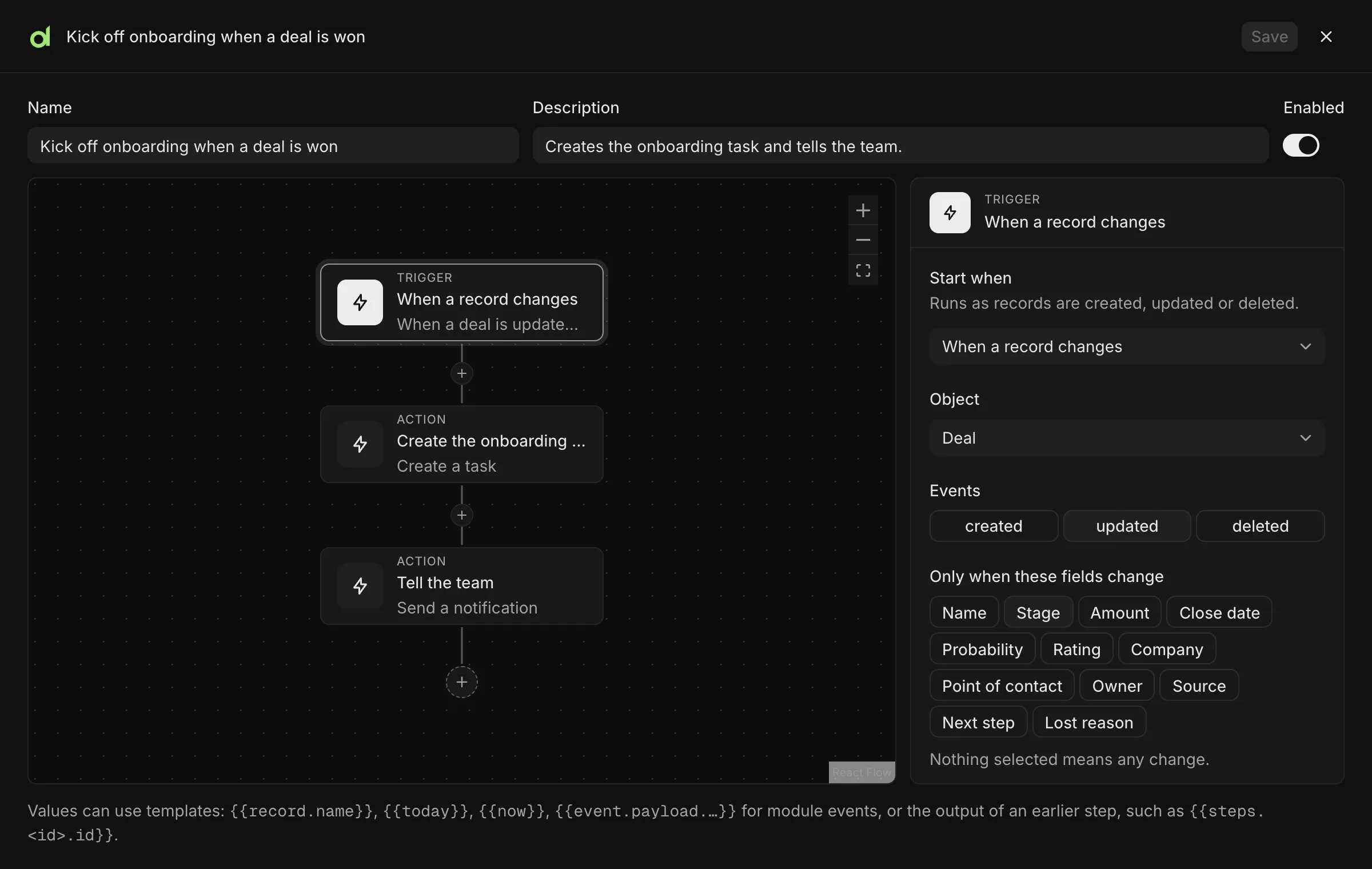
A workflow on the canvas: a trigger, then the steps that run one after another.
Create a workflow
- Choose Workflows in the sidebar, then New workflow. A trigger can also be chosen from the list “Or start from what sets it off”.
- Enter a title. Describe its purpose in the description so others know.
- Pick a trigger (see the table below).
- Add steps with the + button.
- Press Create. A workflow runs only while its switch is On.
Triggers
Steps
Schedules
A schedule needs no cron knowledge. Choose how often it runs: every few minutes, every few hours, every day, on certain days of the week, or once a month, then pick the time. Times are in UTC. Custom (cron) accepts a cron expression. A schedule can run once, or once for each record of an object that matches a condition, such as every open invoice past its due date. One scheduled run covers at most 500 records.Runs and their statuses
The Workflows page lists every workflow with its trigger, whether it is on, and how its last run went. It filters by All, On, Off and Failing, and charts runs over time. Runs on a workflow opens its run history. Opening a run shows what each step did.
A step can also be Skipped, for example when the record it was about was deleted. A step can be Retrying: it failed in a way that may pass, such as a service being busy, and the run says when it will try again. A failed run can be run again with Retry.
Run a workflow on a record
A workflow whose trigger is “When someone runs it” appears in the Actions menu of a record of its object. Choosing it queues a run and returns immediately. The run is carried out in the background, so a slow run, such as a lookup in an outside service, does not hold the page.- While it works, the record’s page shows Running, Queued, or Will try again (a step is waiting to be retried) with the workflow’s name, to anyone who opens the record.
- The workflow stays disabled in the menu until it is done, so it cannot be started twice on the same record.
- When the run ends, the record updates by itself and a message says how it went. A run that did nothing says why.
Workflows that ship with a module
Some modules bring workflows of their own. The Stripe module, for example, records a payment on its invoice when Stripe reports it. These show in the list with the module’s name, and on the module’s Workflows tab in Settings → Modules.- A workspace can switch a module’s workflow on or off and look at its runs.
- The trigger and steps belong to the module and stay as the module made them, so a module update can improve them.
- To change one, open its ⋯ menu and choose Make a copy. The copy belongs to the workspace and starts switched off.
- Uninstalling the module removes its workflows.
Rules
- A run is saved as it goes. After a server restart a run continues from the step it was on.
- A workflow acts as itself, not as a person. It can read and write records and run actions. It cannot change workspace settings.
- Importing data does not start workflows. Turn on Imported records in a record trigger if it should.
- Changes made by a workflow never start workflows, so a workflow cannot trigger itself in a loop.
Related
- Workflows and tasks: triggers, steps, limits and statuses.
- Workflows in a module: ship a workflow, make an action safe to repeat.
- Use the assistant: ask an agent to build a workflow.