

Toolbar of a view
Every view has the same toolbar.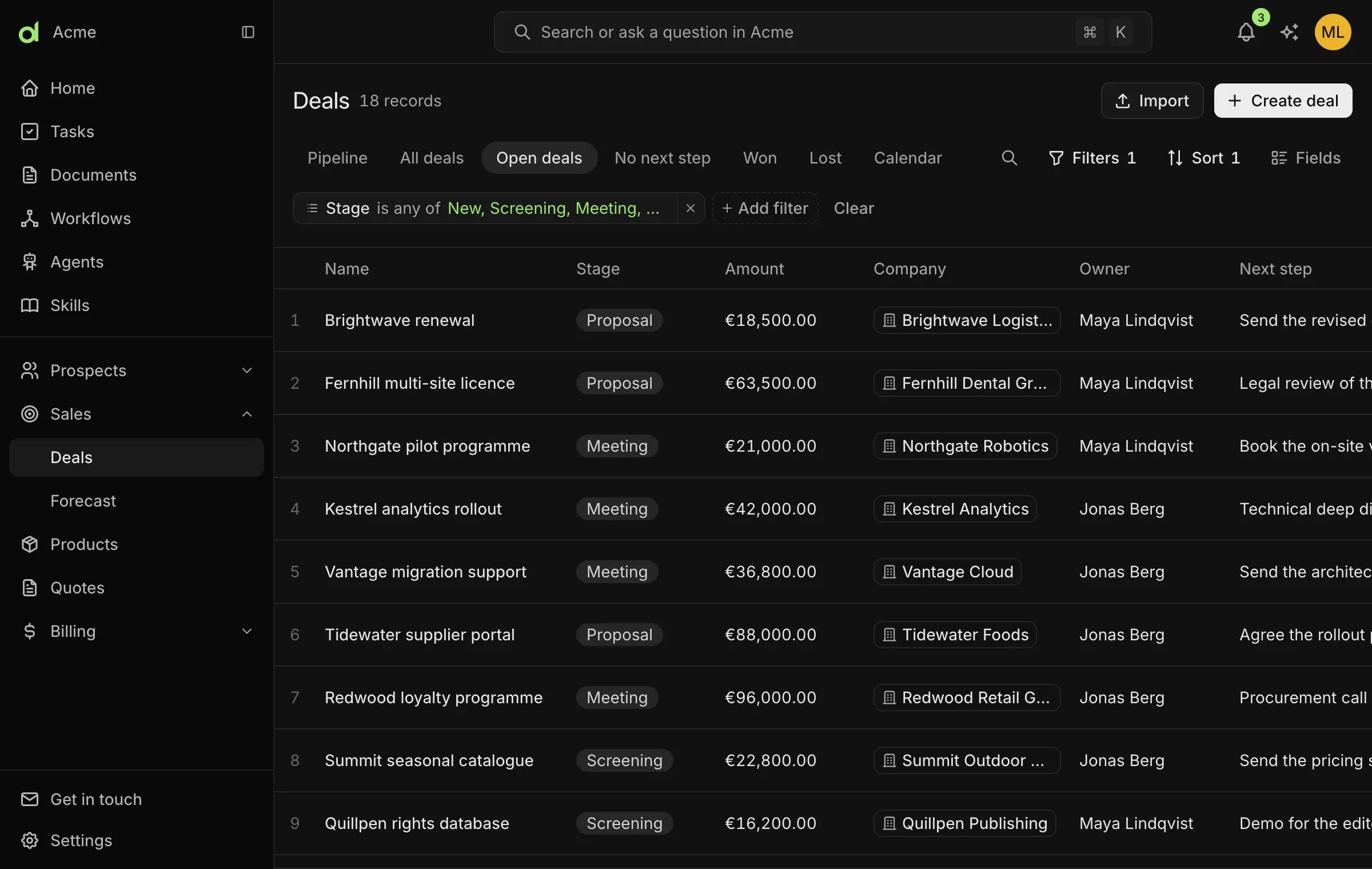
The Open deals view of the deals table. The views, search, filter, sort and fields controls sit above the table.
Edit and select records
- Click a cell to edit it in place.
- Tick the box at the start of a row to select it. A bar appears with Delete for the selected records.
- Each row has a ⋯ menu at its end with the same choices as a record page’s Actions menu: copy the record’s link, run a workflow made to be run by hand on that record, or delete it. Deleting asks first.
- While a workflow is working on a row, a spinner turns beside the record’s name. A message appears when a run started from the menu ends.
Filter records
- Choose Filters.
- Pick a field, choose how it should match, and enter a value.
- Press Apply. Only matching records stay.
Table, board and calendar views
To create a view:
- Open Settings → Views and choose the object.
- Add a view of the kind wanted.
- Set the filter, the sort, the fields, and the field to group by for a board.
Record page
Clicking a record opens its page. The page shows the record’s fields, the records linked to it, its comments, an activity timeline, and any tasks about it. A change to a field saves as it is made. The Actions menu on a record page can:- copy a link to the record;
- run workflows made to be run by hand;
- run actions that modules add, such as recalculating an invoice;
- delete the record.
Related
- Import records: bring in records from a CSV file.
- Views, layouts and navigation: how views and record pages are defined.
- Workflows: create the workflows that appear in the Actions menu.